The content of a message can be dynamically enriched at the time of sending. In addition to data from the contact record, it is possible to inject external values directly into the message content using message parameters. These parameters are used to transmit values when sending is triggered, for example, from an automated campaign or a web service call.
The link sent must be generated in your system and be specific to the contact targeted by the call. A call using the Sendings.SendSingle2 method triggers a single send and transmits a different URL depending on the recipient. In this article, we'll see how to use this mechanism to insert a unique link into an email button.
Step 1: Create a Parameter
To inject values in a URL, you must create a parameter for the email that will display the link.
1.1 Go to the Edition section of the email and click Additional options (in the upper right):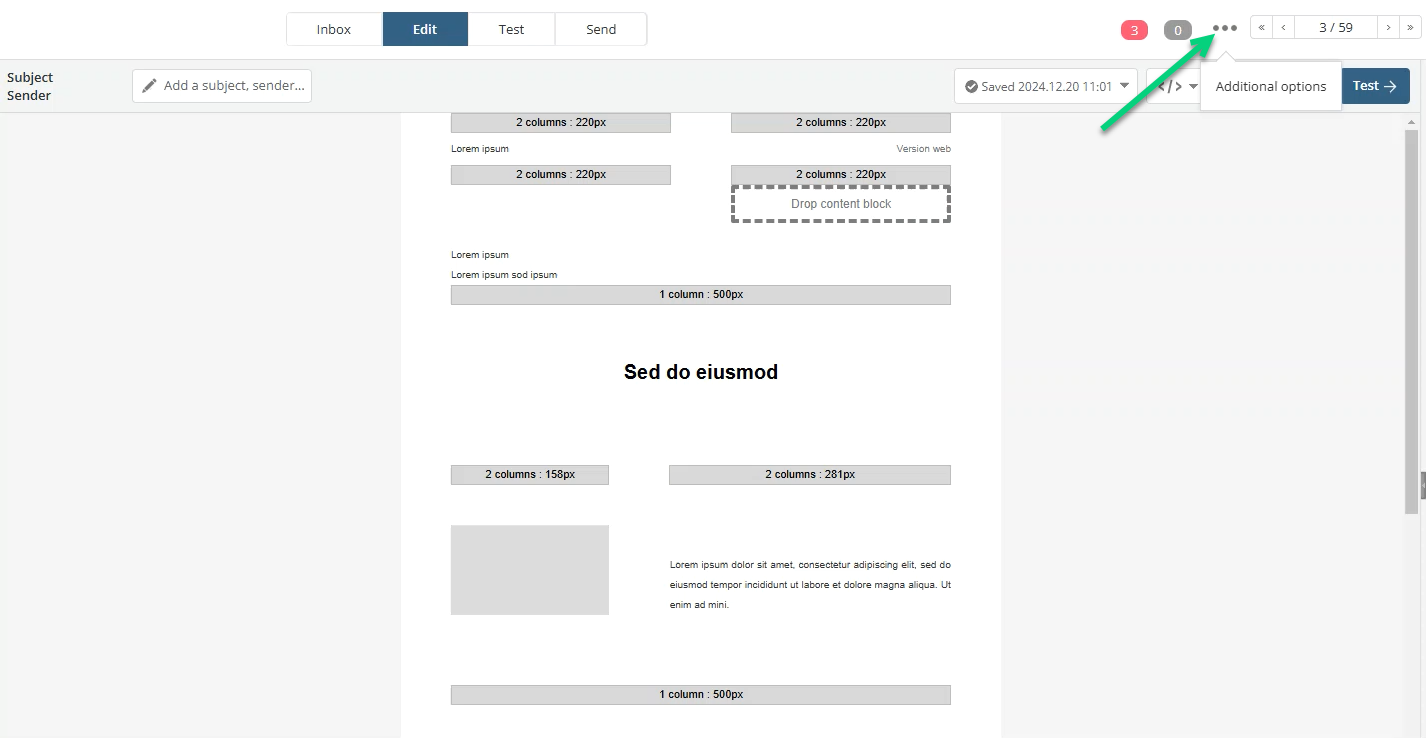
1.2 In the left menu, click Parameters, then click Add: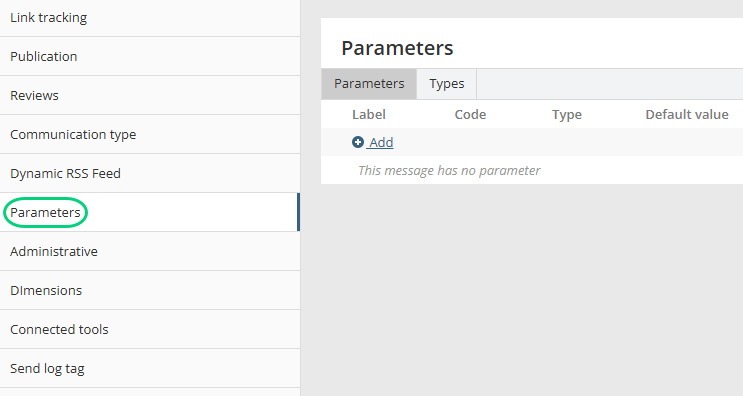
1.3 Add a code and a label un code et une étiquette pour le paramètre (vous pouvez lui donner le code et l'étiquette que vous voulez) :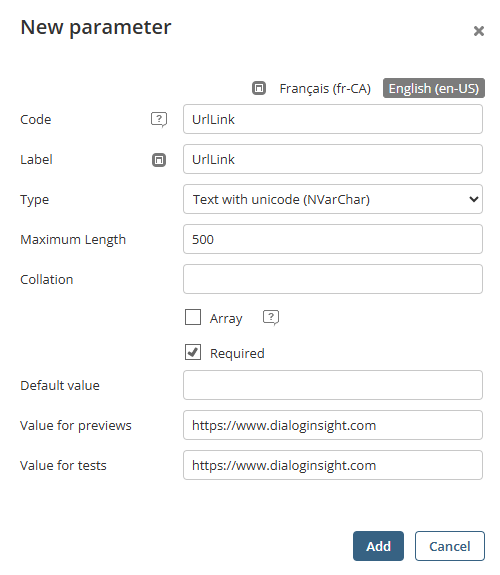
For the case presented in this article, the parameter created is called "UrlLink", has the Text type and a 500-character maximum length. The Required option is checked, which means the parameter must be included for a web services call.
To test the display in Test mode, add a URL value in the Value for previews and Value for tests, but leave the Default value field empty. If you configured a default value, the web service will replace that value with the value pushed by the web service call.
Step 2: Configure the Parameter Value Display
The parameter is now ready to be used and filled with a value. You must now indicate where to display it in the message.
2.1 In the upper right of the parameter list, click the search icon: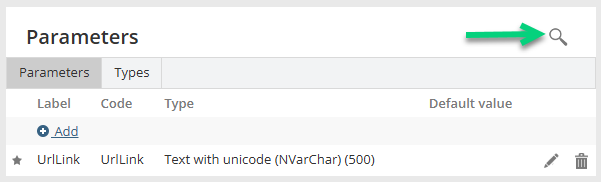 You will see a generic use example:
// Example for message parameter "UrlLink" of type "NVarChar"
output.write("UrlLink = " + Message.Parameters.UrlLink + "<br/>");
2.2 Copy the parameter code in an email block (e.g., Button, HTML Code or Text).
There are 2 ways to write the code: the long syntax and the short syntax.
// Long syntax
// Make sure to use brackets to open and close the code.
[[output.write("UrlLink = " + Message.Parameters.UrlLink + "<br/>");]]
// Short syntax [[=Message.Parameters.UrlLink;]]
Here is an example of code integration for a Button block: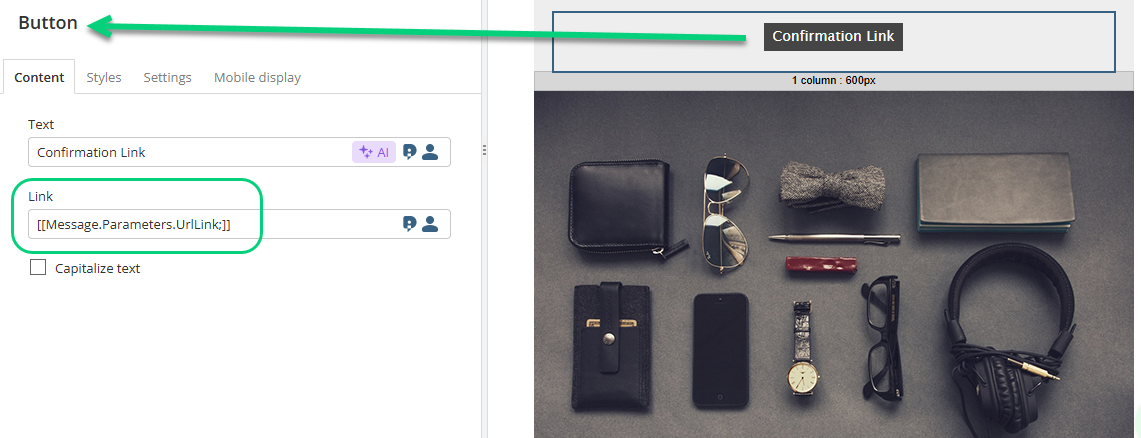
The button will receive the value pushed by the web services call.
3.2 To test the link, go to the Test section. The configured value for Value for previews should display when you hover the button.
Step 3: Build the Web Services Call
The message is now ready to receive a value for the parameter. All you have left to do is make a call that supports the MessageParameterValues option.
"MessageParameterValues": {
    "UrlLink": "http://www.dialoginsight.com/confirmlink?c=123g4gf3&pro=2134"
}
In this example, we use the SendSingle2 method to send a single email.
→ Documentation SendSingle2 (Canada Platform)
→ Documentation SendSingle2 (France Platform)
{
    "AuthKey": {
        "idKey": 9999,
        "Key": "abcdefghijklmnopkrstuvwxyz"
    },
    "idProject": 9999999,
    "idMessage": 9999999,
    "ContactFilter": {
        "Mode": "Clauses",
        // Targets contacts who have Canada in their country profile field
        "TableClauses": [
            {
                "TableCode": "Contact",
                "Clause": {
                    "$type": "FieldClause",
                    "Field": {
                        "TableCode": "Contact",
                        "Name": "f_Country"
                    },
                    "TypeOperator": "Equal",
                    "ComparisonValue": "Canada"
                }
            }
        ]
    },
    "SendSingleOptions": {
        "MessageParameterValues": {
            //Unique recipient-specific link to be inserted in each call
            "UrlLink": "http://www.dialoginsight.com/confirmlink?c=123g4gf3&pro=2134"
        }
    }
}
Additional Resources
|
Was this article helpful?
That’s Great!
Thank you for your feedback
Sorry! We couldn't be helpful
Thank you for your feedback
Feedback sent
We appreciate your effort and will try to fix the article